

How to organize my Files and not die trying
Keep in mind that any structure should be supported by a team; otherwise, it won’t work. People can make mistakes, so a team leader or a project manager should check and, if necessary, remind team members to update files correctly.
As many agencies do, I create a folder for a client and include folders for projects in it. But what structure should be followed for a project?
I sought a way to order project folders according to the process and store files according to usage scenarios. Adding numbers gives structure to any file system in which files and folders are ordered by name by default. Numbers are a designer’s friends!
Here is the folder structure of any design project I do. The folder number prefix places folders in order with the main phase of a project.
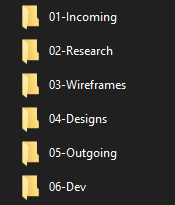
01-Incoming
Here I store all incoming materials and references that clients give me: images, photos, brand books, presentations, logos, screenshots, screencasts, and any other source files and documents relevant to the project. I don’t have specific rules for organizing files here; just distribute them according to content.
02-Research
During the research stage, we collect knowledge of the current or planned system and references to competitors: examples, screenshots, screencasts, interview recordings, and any other work files. We store the research documents we wrote in Dropbox Paper or Google Drive.
If the work is coming in on a daily basis, the results should also be so. That is why we store daily design results in a folder named with the date, like “2018-11-25”. This way, the daily research material can easily be assembled into a presentation for the art director.
03-Wireframes
Wireframes are an integral part of our work. They allow us to design all essential usage scenarios in a short time, to determine the core principles of human interaction with a product, and to conduct usability testing.
We create high-fidelity wireframes so they can be used by developers, even if there is no styling applied in the mockup. The main part of the UX design happens during that stage.
We assemble wireframes with InVision to show navigation and screen flows. In addition, we prepare user flows to cover all scenarios and edge cases. User flows help us to understand what’s done and what’s not; it also presents a valuable structure for developers.
04-Designs
We also call this the Visual Design part. All of the final designs go into the 04-Designs folder. The typical subfolder structure is the same as in Research, Wireframes, and Outgoing folders.
05-Outgoing
During the project, we share the results in folders organized by date. At the end of the project, we put everything in the “Final Assets” folder. We also share interactive prototypes; for example, InVision assembled wireframes and visual designs.
06-Dev
Here we store all of the necessary files for developers like wireframes, designs, assets, and fonts. Developers also obtain the final designs through Zeplin. This way we can control what exactly goes into development.
Depending on the project, we could replace this folder or add other specific sections required during the process.
File naming
Exported file naming
File naming convention is crucial for a well-organized process. It’s important to be able to find the file you need quickly and distinguish it globally (for example, within a search among all of your projects).
A final design file is given a name according to this template:
FlowNumber-StepNumber-StateNumber-AdditionlStateNumber(Optional)-Name
Each flow step of the product gets a number. For example, we design a Login page as a valuable section of the product flow. Login is usually the first and the most common product flow step, so it gets assigned the number 00.
Numbers start at 0. A zero before the single digit helps to order the files properly. If you have more than 99 flows, go ahead and use 3 digits. Note: During our 15 years of work on the most complex projects, we’ve never gotten to 99.
Every step in the product flow also gets a number. For example, in the login page, we have a login dialog with email and password inputs with a Login button. This flow step would get the number 01, while a password reset dialog would be assigned flow step 02 inside a whole Login flow with a number 00.
There is a state in any step which also gets a number. For example, we have password input in the Login dialog. Such a state gets the number 02, because it comes right after the email input. We also add a name for each state. So the final name for the example would be:
00-01-02-Password.png
If a user is locked out after several unsuccessful login attempts, the design file for that situation would be named
00-01-06-EmailLocked.png
Choose short and understandable state names, such as Feed, Post, Filter, and Event. Replace spaces with CamelCase: i.e. NewMessage, FollowGroup. Avoid complex and vague names. If you want to present several visual options of the same screen, you can add a letter to the end of the number chain:
01-02-00a-Search.png01-02-00b-Search.png

Leave a comment